
From Phantom Setup to Your First DEX Trade — Beginner-Friendly
New to Solana and not sure where to begin? This Solana wallet guide covers everything — setting up Phantom, securing your seed phrase, funding your wallet, and making your first swap on Jupiter DEX.
Solana wallet guide — what you’ll learn
Every step below references Phantom’s official help center and Solana developer docs. Once you finish this Solana wallet guide, check out our best Solana trading bots for 2026 to level up your workflow.
Solana Wallet Complete Guide — From Phantom Setup to Your First DEX Trade
Solana sounds exciting — fast transactions, low fees, a huge ecosystem. But then you think: “Where do I even start? What if I download a fake wallet? What if I lose my money?”
Those fears are completely normal. In fact, the good news is: with the right steps, setting up a Solana wallet and making your first trade is simpler than you think. Every step in this guide references official sources — Phantom Support, Solana Docs, and NIST security guidelines.
By the end of this guide, you will be able to:
- Install the Phantom wallet safely (avoiding fake sites)
- Create a new wallet and protect your recovery phrase
- Send SOL to your wallet and confirm it arrived
- Make your first swap on a DEX (decentralized exchange) without common beginner mistakes
- Spot and avoid scams, phishing, and fake tokens
⚡ Your Roadmap Today
Step 1: Install Phantom → Step 2: Create wallet & secure seed phrase → Step 3: Fund with SOL → Step 4: Swap on Jupiter DEX
Total time: roughly 15–30 minutes. Let’s go.
Quick 2-Minute Checklist (Before You Start)
Before you touch anything, make sure you have these ready:
✅ What you need
- A device — computer (Chrome, Brave, Firefox, or Edge) or smartphone (iOS / Android)
- Safe internet — avoid public Wi-Fi at cafés or airports. Use your home network or mobile data.
- A small amount of SOL — buy on a centralized exchange (like Coinbase, Kraken, or Binance) and send it later. Start small — a few dollars is enough to learn.
- 15–30 minutes of uninterrupted time
- A pen and paper — you will need to write something down. Not on your phone. Not in a screenshot. On actual paper.
🛡 Two Non-Negotiable Security Rules
1. Your recovery phrase is your money
Anyone who sees it can steal everything. Never share it — not with friends, not with “support agents.” Do not type it into any website. And never store it digitally (no screenshots, no cloud, no notes app).
2. Always verify you are on the real Phantom website
The official domain is phantom.com. However, scammers create lookalike sites that steal your funds the moment you enter your phrase. Therefore, type the URL manually or use a bookmark — never click search engine ads.
Step 1 — Install Phantom Wallet Safely (Avoid Fake Sites)
Phantom is a free, non-custodial wallet. In other words, you control your funds — Phantom the company cannot access or move your money. Additionally, Phantom supports Solana and several other networks. You can enable or disable chains in Settings → Active Networks.
Source: Phantom Support — Supported chains
The only safe way to install Phantom
-
Go to the Official Download Page
Open your browser and navigate directly to phantom.com/download.
-
Choose Your Platform
Select Chrome, Brave, Firefox, Edge, iOS, or Android.
-
Install from the Official Store
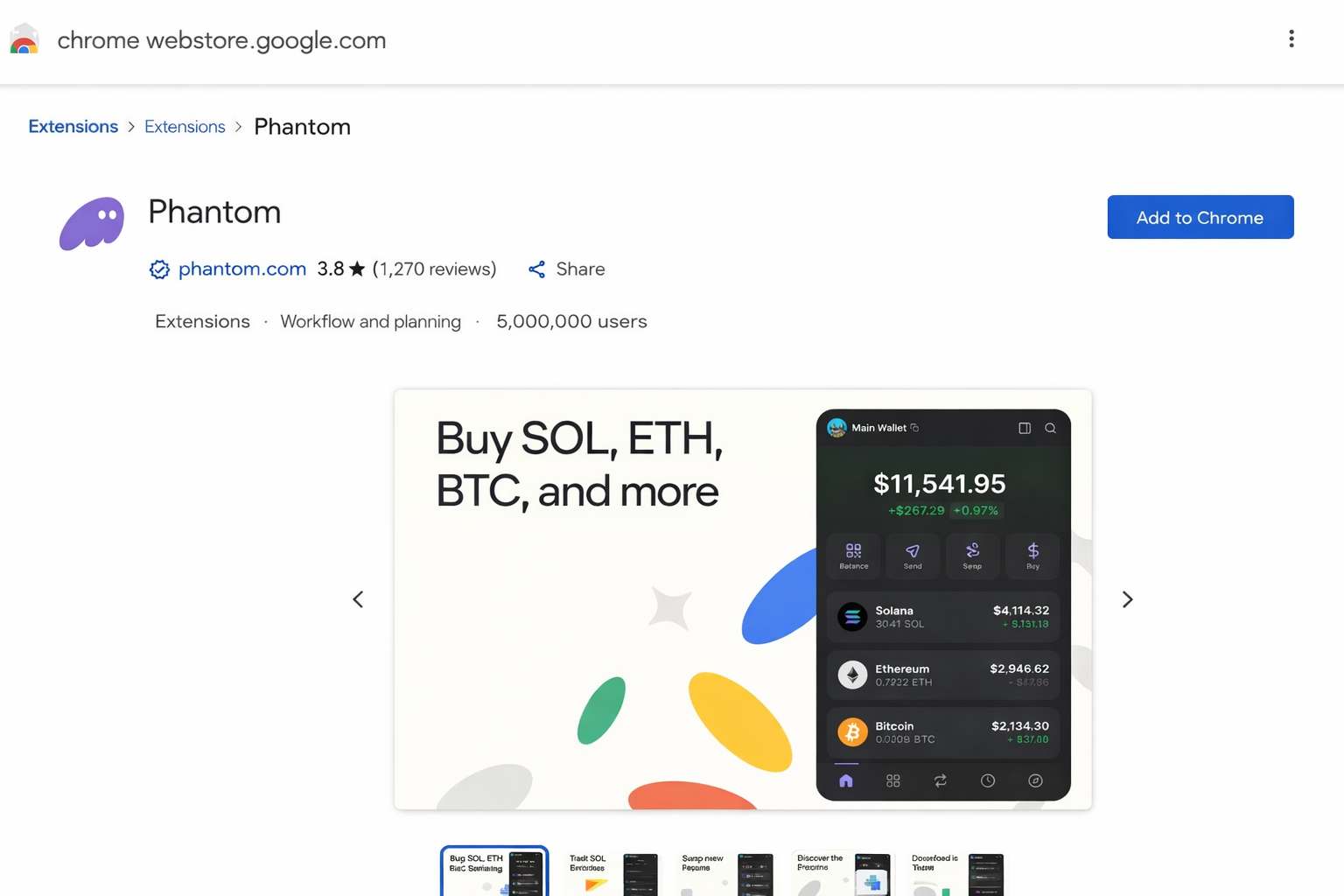
For browser extensions, you will be redirected to the official store (e.g., Chrome Web Store). Then, click “Add to Chrome” (or equivalent). For mobile, download directly from the Apple App Store or Google Play Store.
🚫 Fake Google/Bing ads — Scammers buy ads above real search results. The URL looks almost right (e.g., phantonn.com, phantom-app.io). Never click ads to install wallets.
🚫 Copycat browser extensions — Lookalike extensions appear in stores. Verify the developer name is “Phantom” with millions of users and high ratings.
🚫 Fake support DMs — Nobody from Phantom will ever message you first on Discord, Twitter, or Telegram. Anyone asking for your recovery phrase is a scammer. Period.
How to verify you installed the real Phantom
- URL shows
phantom.com(this is the current official domain) - Chrome Web Store listing shows publisher: Phantom with verified badge
- Extension ID:
bfnaelmomeimhlpmgjnjophhpkkoljpa - Bookmark help.phantom.com — this is the official support center
Mobile? Same rules apply
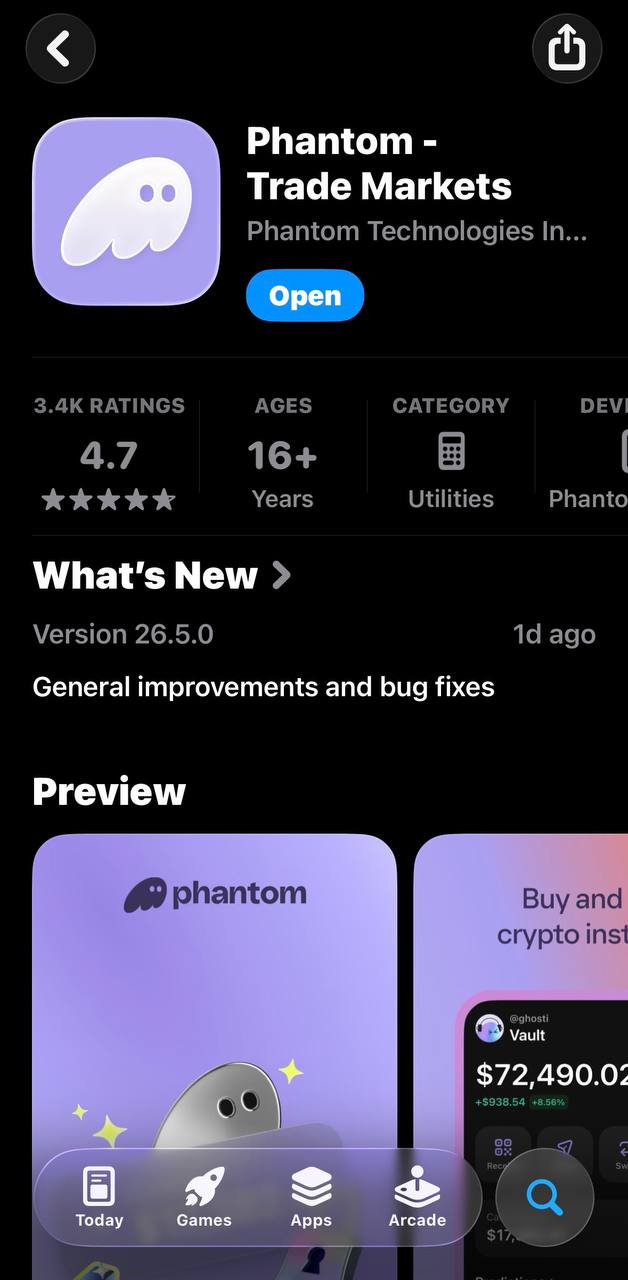
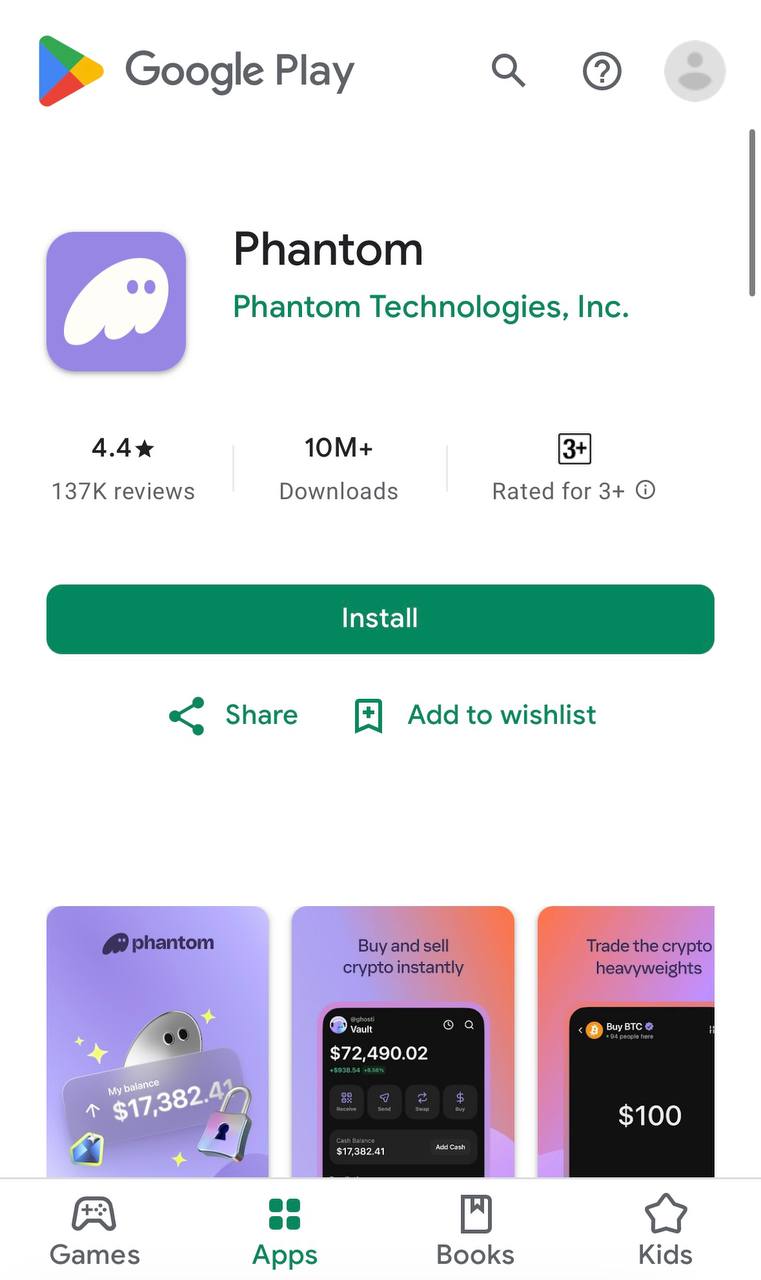
Phantom is also available on iPhone and Android. Always download from the official store — not from links in DMs or search ads. Look for the developer name “Phantom Technologies, Inc.” and a high number of ratings.
Step 2 — Create a Solana Wallet (Seed Phrase Explained Like You’re 10)
Once Phantom is installed, click the Phantom icon in your browser toolbar (or open the app). Then, select “Create a new wallet.”
After that, Phantom will show you a secret recovery phrase — typically 12 words in a specific order.
What is a seed phrase? (Simple version)
Think of it as the master key to a vault. Your wallet address is like the vault’s location — anyone can send things to it. However, the seed phrase is the only key that opens it. If someone steals the key, they take everything. Likewise, if you lose the key, nobody (not even Phantom) can open it for you.
How to store your recovery phrase safely
✅ DO
- Write it on paper with a pen. Double-check every word and the order.
- Make a second copy stored in a different physical location (e.g., a safe at home + a sealed envelope at a trusted family member’s place).
- For long-term storage, additionally consider metal backup plates (fireproof and waterproof). Available online.
🚫 NEVER Do These
Take a screenshot or photo of your phrase
If your phone or cloud is hacked, attackers find it instantly.
Store it in a notes app, email draft, or cloud drive
Google Drive, iCloud, Dropbox — all can be compromised.
Copy-paste it into any document on your computer
Malware can monitor your clipboard.
Share it with anyone
No friend, no “support agent,” no website. Ever. No legitimate service will ask you for it.
Why is digital storage dangerous? If your device or cloud account is compromised, the attacker can find your phrase and drain your wallet in seconds. As a result, NIST (National Institute of Standards and Technology) recommends that sensitive credentials should be stored offline, in a physically secure location, separate from the device that uses them. The same principle applies here.
See also: Phantom Support — Security & Safety
After saving your phrase
1. Phantom will ask you to confirm some words (to prove you wrote them down).
2. Next, set a strong password for daily access. This is not the same as your seed phrase — it just locks the app on your device.
3. Done! You now have a Solana wallet with a public address (a long string starting with a letter or number).
Step 3 — Add SOL to Your Phantom Wallet (First Transfer as a Test)
Your wallet is empty. You need SOL (Solana’s native token) to do anything — pay transaction fees, swap tokens, or interact with apps.
Where to get SOL
Buy SOL on a centralized exchange (Coinbase, Kraken, Binance, etc.) and send it to your Phantom wallet address. Alternatively, you can use Phantom’s built-in “Buy” feature, which connects to third-party on-ramp providers.
Golden rule: always do a test transfer first
-
Copy Your Solana Receive Address
Open Phantom and tap “Receive” (or click your address to copy it).
⚠️ Make sure you are copying your Solana address — not Ethereum, Bitcoin, or another network. Phantom supports multiple chains. Sending SOL to the wrong network address means your funds are likely lost.
-
Paste the Address on Your Exchange
Go to the exchange where you bought SOL. Next, paste your Phantom address in the “Send” or “Withdraw” field. Double-check the first 4 and last 4 characters. Remember, blockchain transfers are irreversible.
-
Send a Tiny Test Amount First
Send something small (e.g., 0.01–0.1 SOL). Wait for it to arrive. Once confirmed, send the rest.
There is no fixed minimum. Every Solana transaction costs a small fee (typically fractions of a cent, though this can vary with network conditions). In addition, you need a tiny amount to keep your account “rent-exempt” on the network — the exact amount can be queried via Solana’s RPC method.
A few dollars’ worth is more than enough to start learning. For current technical details, see Solana Docs — getMinimumBalanceForRentExemption.
How to confirm your SOL arrived
To verify any transaction, use a block explorer — essentially a search engine for the blockchain.
1. Go to Solana Explorer (official, maintained by the Solana Foundation) or Solscan (a widely used third-party explorer).
2. Paste your wallet address into the search bar.
3. You should see your balance and recent transactions. Look for status: “Success” or “Confirmed.”
Tip: Also, bookmark your wallet address page on Solscan, the Phantom download page, and the Phantom Supported Chains page. Bookmarks prevent you from accidentally visiting a fake site.
Step 4 — First Swap on Jupiter (Solana DEX) Without Losing Money
What is a DEX?
A DEX (decentralized exchange) lets you trade one token for another directly from your wallet — no account signup, no company holding your funds. Instead, the trade happens on the blockchain through smart contracts (automated programs).
Which DEX should you use?
Jupiter is one of the largest decentralized trading platforms on Solana and a popular choice for beginners. Specifically, it works as a DEX aggregator — it searches across many Solana DEXs (like Raydium, Orca, and others) to find you the best price automatically.
Source: jup.ag — official site
Before you swap — know what can go wrong
| Problem | What It Means | How to Avoid It |
|---|---|---|
| Slippage | Price moves between click and execution. Slippage = allowed price movement. | Start with 0.5%–1%. Only increase if transactions keep failing. |
| Price impact | Your trade is large relative to available liquidity, pushing the price against you. | Therefore, trade smaller amounts. Heed Jupiter’s price impact warning. |
| Fake tokens | Scammers create tokens with the same name/logo as real projects. | Verify the contract address on the project’s official site. Jupiter also shows verification indicators for well-known tokens — but always confirm via the official source. |
| Insufficient SOL for fees | You swapped your entire SOL balance, leaving nothing for the fee. | Keep a small SOL buffer for fees (e.g., 0.01–0.05 SOL, depending on your activity). |
| Malicious transaction | A fake site asks you to sign a transaction that drains your wallet. | Only connect to trusted sites. Above all, read Phantom’s popup before approving. |
Step-by-step: your first swap on Jupiter
-
Go to jup.ag
Type jup.ag directly into your browser. Do not click search engine ads. Bookmark it right away so you always use the real URL.
-
Connect Your Wallet
Click “Connect Wallet” → select Phantom → then approve the connection in the Phantom popup.
-
Select Your Tokens
Top field (“You’re paying”): select SOL. Bottom field (“You’re receiving”): select the token you want. For instance, try USDC (a stablecoin — low risk for a test trade).
-
Enter a Small Amount
Start tiny — for example, 0.01 SOL. This is a learning exercise, not an investment.
-
Review the Details
Exchange rate:Check the rate shown is reasonablePrice impact:Should be very low (under 0.1% for common pairs)Slippage:Jupiter’s “auto” default is typically fine for beginners. You can set it manually (0.5%–1% is a common starting point). -
Click “Swap” → Approve in Phantom
Phantom shows a popup with transaction details. First, read it carefully. Then, confirm it matches what you expect and click “Approve.”
-
Verify on the Explorer
Jupiter shows a confirmation with a transaction link. Click it (or alternatively, paste the TX ID into Solana Explorer or Solscan). Look for status: “Success.”
Congratulations — you just completed your first decentralized trade on Solana. 🎉
If your swap failed — troubleshooting
| Symptom | Likely Cause | Fix |
|---|---|---|
| “Transaction failed” | Slippage too low or price moved too fast | Increase slippage slightly (try 1%–2%). Retry. |
| “Insufficient balance” | Not enough SOL for swap amount + fees | Reduce swap amount. Instead, keep a small SOL buffer for fees. |
| Transaction stuck / pending | Network congestion (rare but possible) | Wait a minute and check your wallet. In most cases, failed Solana transactions don’t deduct your tokens (only a small fee may be lost). |
| Token not visible in wallet | Phantom may not auto-display new tokens | In that case, go to Phantom → manage token list → search and toggle on. Or check on Solscan. |
| “Route not found” | No liquidity path for this pair | Token may have very low liquidity. In this case, try a different token or smaller amount. |
Common Questions & Answers
Is Phantom safe?
Yes, with good habits. Phantom is non-custodial — the company never holds your funds or private keys. It includes built-in scam detection. However, no wallet can protect you if you share your seed phrase or connect to a malicious site. For details, see Phantom’s support center.
Do I need a hardware wallet?
Not to get started, but consider one later. A hardware wallet (like Ledger) stores keys on a separate physical device, adding protection against malware. Furthermore, Phantom supports Ledger integration. For small amounts and learning, however, the browser extension or mobile app is typically sufficient.
Why did my swap fail?
Most often slippage or insufficient SOL for fees. Check the troubleshooting table above. If slippage is the issue, try increasing by small increments (0.5% at a time). Also, always keep a small SOL reserve for transaction costs.
What is slippage and what should I set?
Slippage is the maximum price difference you accept between the quoted price and execution price — like a price cushion. Too low = trade fails. Too high = worse price than expected. For common pairs (SOL/USDC), 0.5%–1% is often a good starting point. Meanwhile, less liquid tokens may need 1%–3%. Be cautious with anything above 5% — the ideal setting depends on the token and current market conditions.
How do I avoid fake tokens and phishing?
Verify before you trust. First, check the token’s contract address against the project’s official site. Jupiter shows verification indicators for well-known tokens, but always confirm via the original source. Moreover, never click links in DMs or unsolicited messages. Bookmark your key sites (phantom.com, jup.ag, explorer.solana.com) and always navigate via bookmarks. If Phantom flags a suspicious transaction — stop and do not approve.
Next Step — Make Solana Trading Easier With Telegram
At this point, you have done the hard part. You have a wallet, funds, and a successful trade under your belt.
After you learn the basics on Jupiter, you will quickly notice some new challenges as you trade more often:
- Monitoring prices across many tokens is time-consuming
- Speed matters — by the time you open Jupiter and set up a trade, the price may have moved
- Tracking your positions across different tokens gets messy
- Repeating the same multi-step process for every trade feels slow
Because of this, many Solana traders prefer a faster workflow for monitoring and quick swaps once they are comfortable with the basics. One tool for this is Bloom — a Telegram-based trading bot that lets you monitor tokens, execute swaps, and track your portfolio directly from Telegram.
What Bloom can do:
- Real-time token price alerts and monitoring
- Quick token swaps directly from Telegram
- Wallet tracking and portfolio overview
- New token discovery tools
- Customizable trading settings (slippage, amounts)
Getting started (3 steps)
1. Open Telegram on your phone or desktop.
2. Tap the link below to open the Bloom Solana bot.
3. Follow the bot’s setup instructions — takes about 1 minute.
Safety reminder before using any trading bot
Bloom is a third-party tool. Follow the bot’s setup instructions carefully, and never share your Phantom seed phrase with any bot or service.